
Security and permissions
What an AI assistant can and can't do in your Trillet account, what costs money, and how to disconnect.
When you connect ChatGPT or Claude to Trillet, the assistant works as you. This page explains what that means and how to stay in control.
What the assistant can do
The connection has the same access to your workspaces as your own Trillet login. It can:
- View agents, call flows, call history, recordings and transcripts, phone numbers, knowledge bases, and workflows.
- Build and edit agents, call flows, node flows, knowledge bases, workflows, your website widget, and demo pages.
- Place calls, including text test calls and outbound calls to real phone numbers.
- Buy, assign, and release phone numbers.
It can work in every workspace you belong to. You pick the workspace it starts in on the consent screen, and it switches when you ask.
What it can't do
- It can't see or change your password, email address, billing details, or API keys.
- It can't reach any workspace you are not a member of. Trillet checks your membership on every request, not just when you connect.
- It can't do anything your own Trillet login can't do.
Actions that are real and billed
Some tools affect the outside world or cost money. They run for real and are charged to the workspace wallet:
| Action | What happens |
|---|---|
| Outbound call | Trillet calls the phone number you give. The call is billed like any other call. |
| Text test call | A real call to your agent over text. It costs a few cents in model usage. Bookings, webhooks, and other actions the agent takes during the call happen for real. |
| Buy a phone number | The number is purchased and its monthly cost is billed. |
| Run or turn on a workflow | The workflow runs with real side effects, such as sending messages or calling webhooks. |
| Delete or release | Agents, call flows, knowledge bases, workflows, and numbers are removed. Released numbers may not be recoverable. |
For these tools, Trillet requires an explicit confirmation, so the assistant has to ask you before it goes ahead. ChatGPT and Claude may also ask you to approve tool use. Read the details before you approve.
Keep test calls away from production systems where you can. Point booking and webhook tools at test calendars and test endpoints while you are building.
Disconnect an assistant
You can remove an assistant's access at any time. It stops working straight away, in all of your workspaces.
In the Trillet dashboard, go to Settings > Account > Connected Apps. Each connected assistant shows when you connected it, when it was last used, and the workspace it starts in.
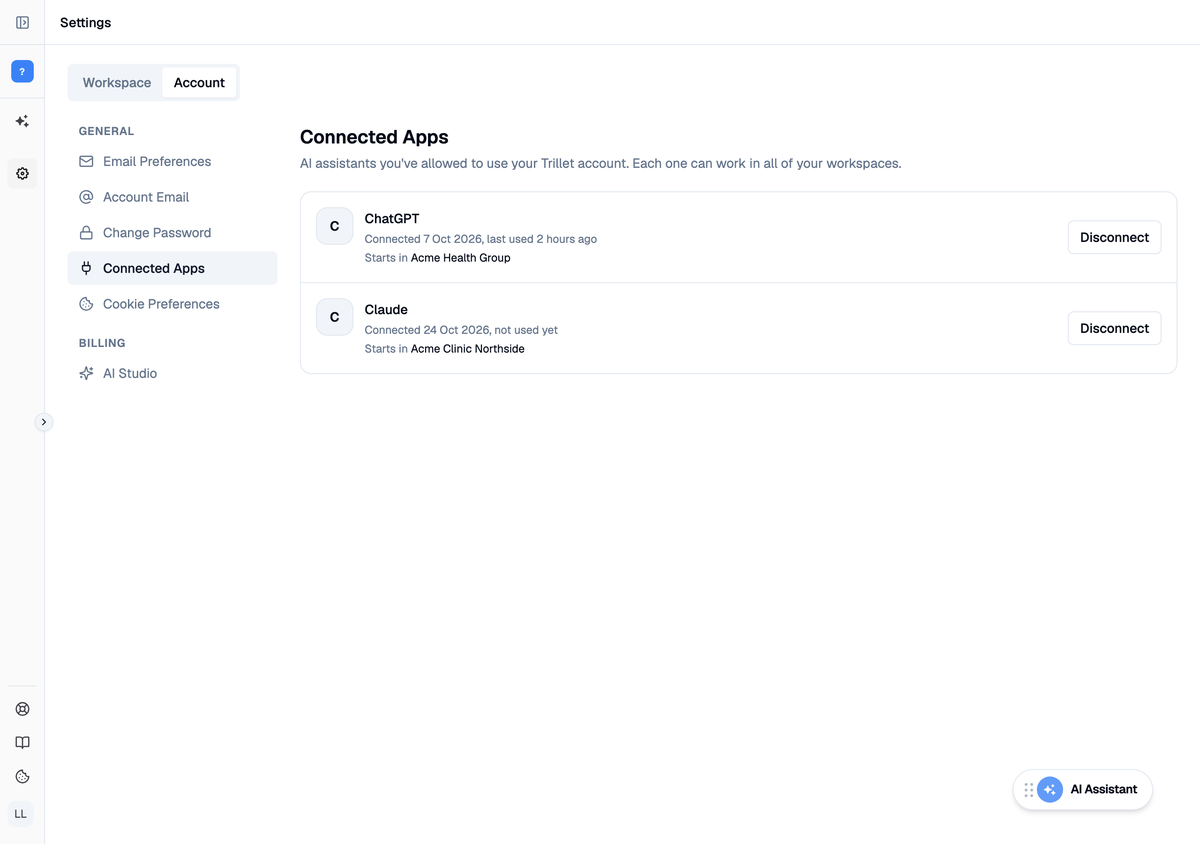
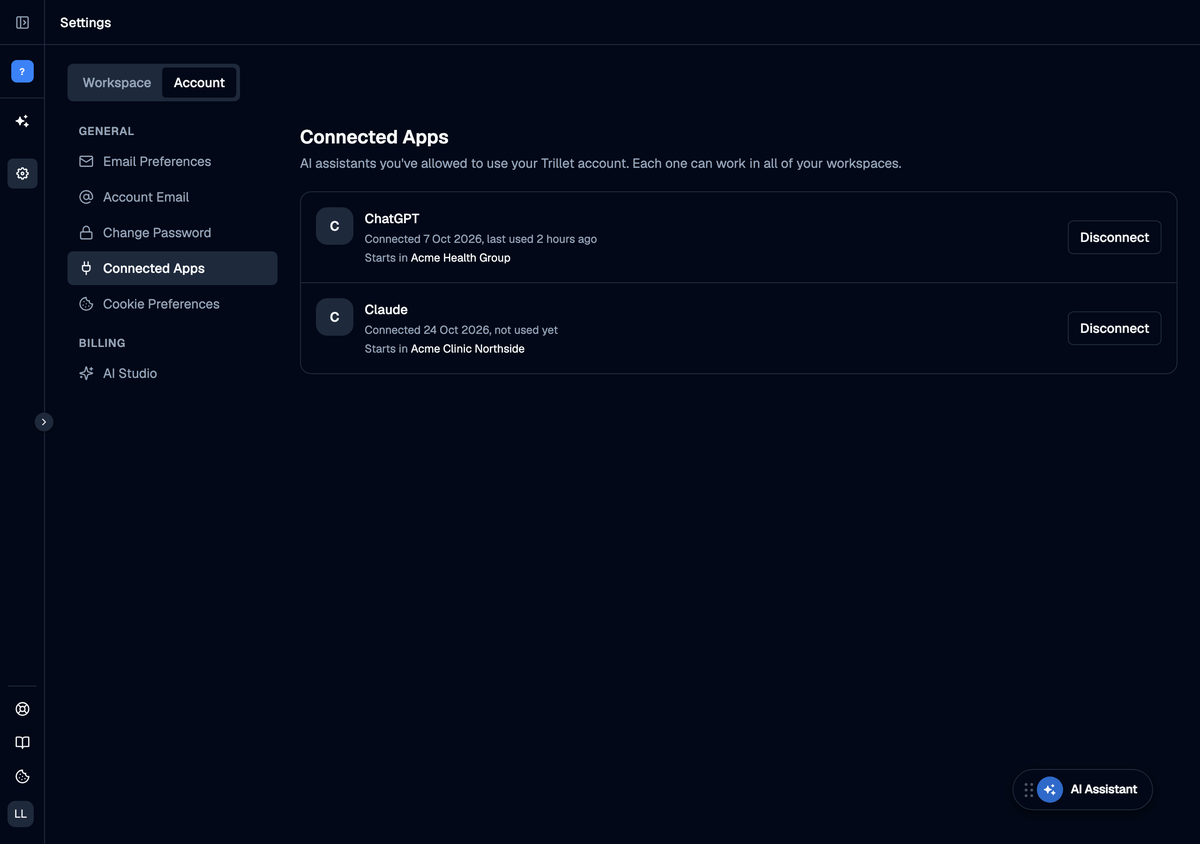
Select Disconnect next to the assistant, then confirm.
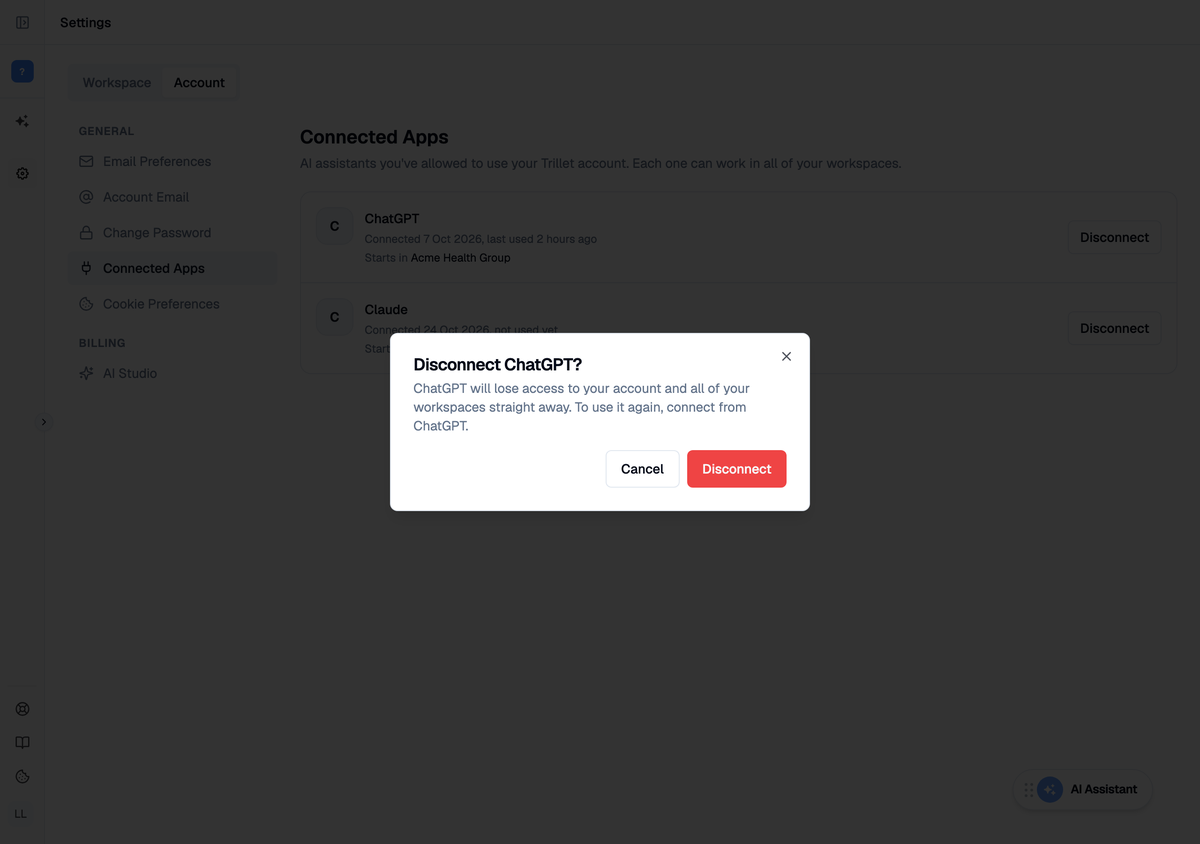
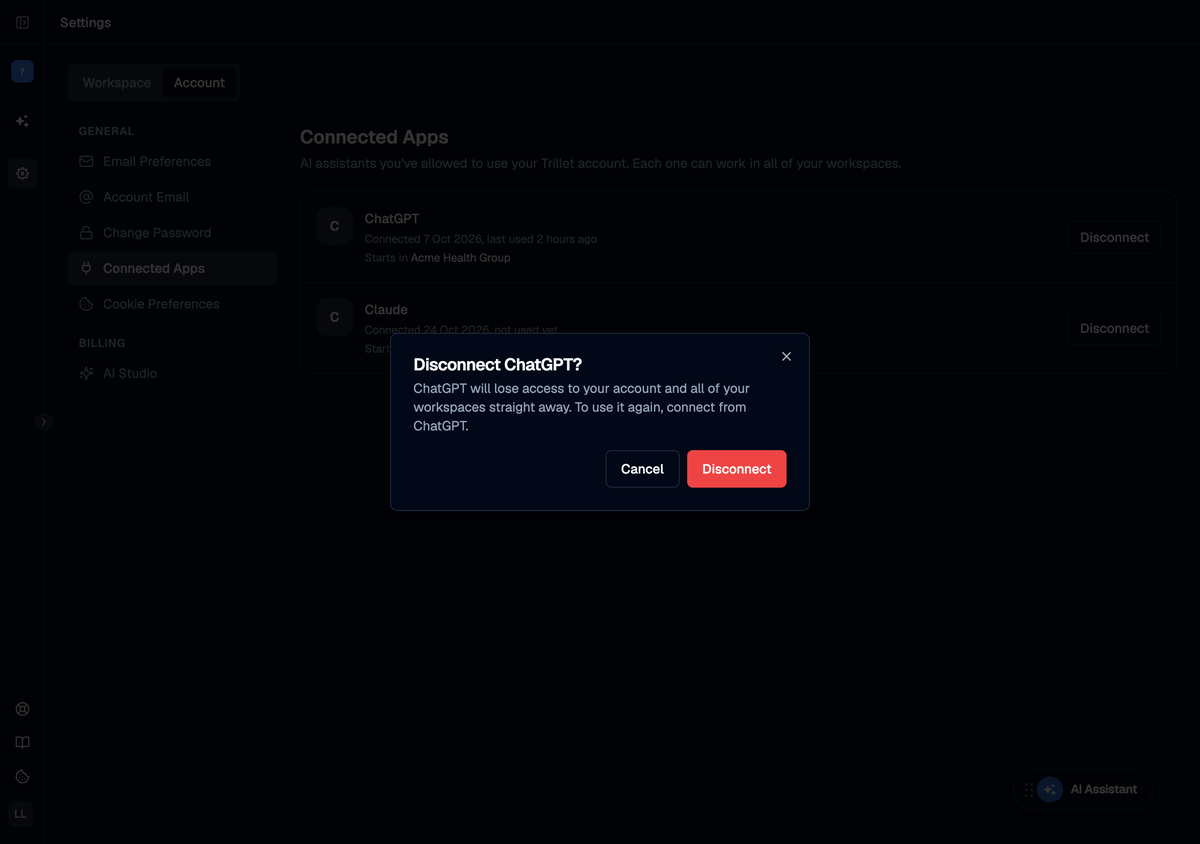
To use the assistant with Trillet again, connect from ChatGPT or Claude. You will see the consent screen again.
You can also remove the Trillet connector inside ChatGPT or Claude. Removing it there stops that app from using it. Disconnecting in Trillet makes sure access is revoked on Trillet's side too.
API keys
Claude Code, Cursor, and other developer tools usually connect with an API key instead of a login.
- An API key acts on the workspaces its user belongs to. Treat it like a password.
- Trillet accepts the key only in the
Authorizationheader, never in a URL. - Revoke a key at any time in Settings > Developer > API Keys. Revoking stops it working straight away on every connection that uses it.
Use connectors you trust
ChatGPT and Claude warn that custom connectors are not verified by OpenAI or Anthropic. Only add the Trillet connector using the exact URL https://mcp.trillet.ai/mcp. Be careful when the assistant reads content from outside sources in the same conversation, such as web pages or shared documents, because that content can try to steer the assistant. Review actions before you approve them.