
Connect Claude
Add Trillet to Claude.ai and Claude Desktop as a custom connector and sign in with your Trillet account.
Add Trillet to Claude once and use it in Claude.ai, Claude Desktop, and the Claude mobile apps. You sign in with your Trillet login. You don't need an API key.
Custom connectors are tied to your Claude account, so a connector you add in Claude.ai also works in Claude Desktop, and the reverse.
Before you start
- A Trillet account. Sign up or log in at app.trillet.ai.
- A Claude plan. Anthropic offers custom connectors on the Free, Pro, Max, Team, and Enterprise plans. Free plans are limited to one custom connector. Check Anthropic's current guide for the latest plan details.
- On a Team or Enterprise plan, an owner adds the connector for the organization first. See Team and Enterprise plans.
Add the Trillet connector (Free, Pro, and Max)
In Claude.ai or Claude Desktop, go to Customize > Connectors.
Select + Add, then Add custom connector.
- Name:
Trillet - Remote MCP server URL:
https://mcp.trillet.ai/mcp
Select Continue. Claude detects that Trillet uses OAuth sign-in. Keep the detected settings and select Continue again.
- Authentication: Sign in now
- OAuth client: Use Claude's published identity (Recommended)
- Request headers: leave empty
Select Add.
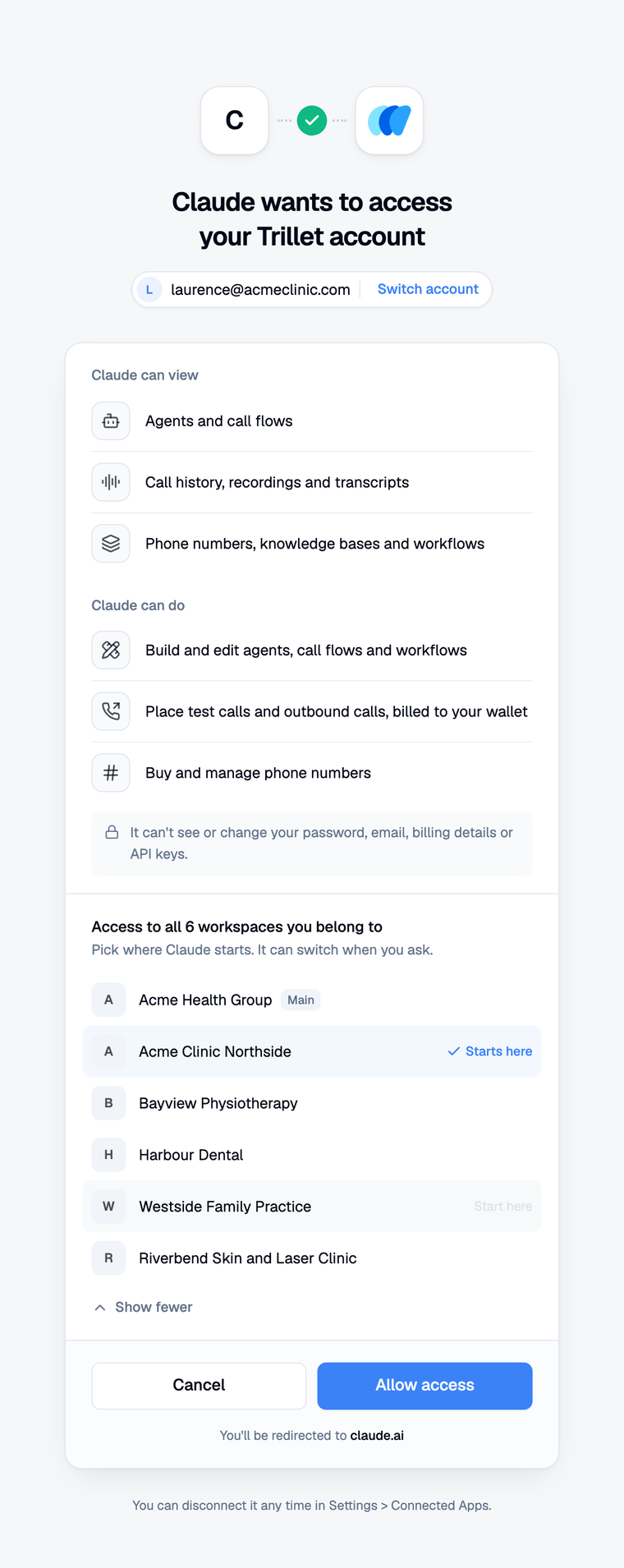
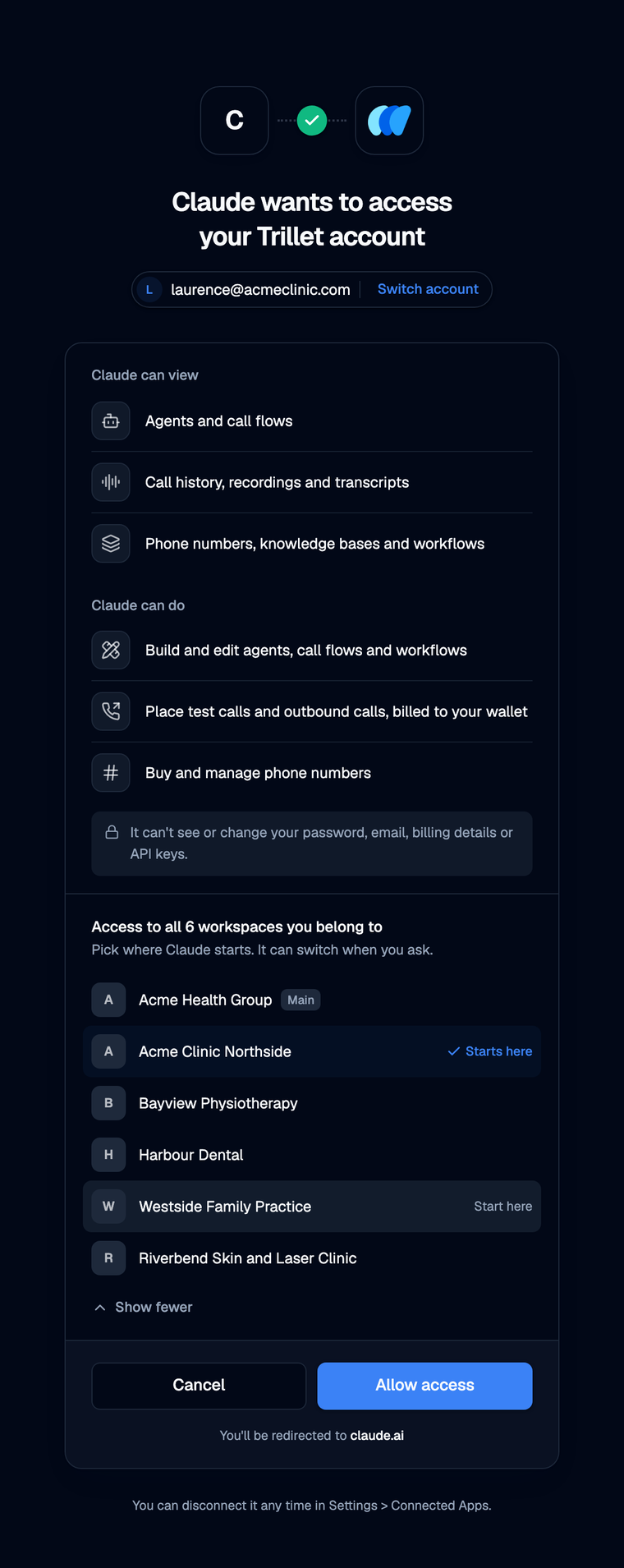
Claude opens a Trillet sign-in page. Log in, then review the consent screen titled Claude wants to access your Trillet account.
If you belong to more than one workspace, choose the workspace Claude starts in. Claude can reach all of your workspaces and switches when you ask.
Select Allow access. Trillet returns you to Claude.
Team and Enterprise plans
An owner adds Trillet to the organization once. Each member then connects with their own Trillet login, so everyone only reaches their own Trillet workspaces.
Owners (on Enterprise, also custom roles with Manage access to Libraries):
- Go to Organization settings > Connectors.
- Select Add, hover over Custom, and select Web.
- Enter the name
Trilletand the URLhttps://mcp.trillet.ai/mcp, then select Continue. - Keep the detected settings: Authentication set to a sign-in option, OAuth client set to Use Claude's published identity (Recommended), and no request headers. Select Add.
Members:
- Go to Customize > Connectors.
- Find Trillet, labeled Custom.
- Select Connect, log in to Trillet, and select Allow access.
Don't add a Trillet API key as a request header on an organization connector. A header is shared by everyone in the organization, so every member would act as the owner of that key. Use OAuth sign-in so each member connects as themselves.
Use Trillet in a chat
- Start a new conversation.
- Select the + button at the lower left of the message box, then Connectors.
- Make sure Trillet is turned on for the conversation.
- Ask for what you want. For example:
Show me the last 10 calls to my Reception agent and summarise anything that went wrong.
Claude may ask for your permission before it uses a Trillet tool. Read what it plans to do before you allow it. For calls, phone number purchases, workflow runs, and deletes, Trillet also asks you to confirm in the chat before anything happens.
For more ideas, see What you can ask.
Already using the Trillet Desktop extension?
If you installed the Trillet extension (trillet.mcpb) in Claude Desktop with an API key, you can keep using it or move to the connector. The connector updates on its own, works in Claude.ai and on mobile, and signs in without an API key.
To switch, add the connector as above, then turn off or remove the extension in Claude Desktop under Settings > Extensions. Keep only one of them enabled, so Claude doesn't see two copies of every Trillet tool. See Claude Code and other clients for more on the extension.
Disconnect Claude
You can remove access from either side:
- In Trillet: go to Settings > Account > Connected Apps and select Disconnect next to Claude. Access stops straight away.
- In Claude: go to Customize > Connectors, select the three dots next to Trillet, and remove it. Team and Enterprise owners can remove it for everyone in Organization settings > Connectors.
See Security and permissions for details.