---
title: "Connect ChatGPT"
sidebarTitle: "Connect ChatGPT"
description: "Add Trillet to ChatGPT as a custom MCP connector and sign in with your Trillet account."
---
> **For AI agents:** the complete documentation index is at [llms.txt](https://docs.trillet.ai/llms.txt). Append `.md` to any page URL for its markdown version.
Add Trillet to ChatGPT once, then ask ChatGPT to build, test, and review your agents in any conversation. You sign in with your Trillet login. You don't need an API key.
## Before you start
- **A Trillet account.** Sign up or log in at [app.trillet.ai](https://app.trillet.ai).
- **A ChatGPT plan that allows custom MCP connectors.** OpenAI decides which plans can add custom MCP servers and can change this at any time. At the time of writing, OpenAI's help center lists ChatGPT Business, Enterprise, and Edu, on ChatGPT on the web. Check [OpenAI's current guide](https://help.openai.com/en/articles/12584461-developer-mode-and-mcp-apps-in-chatgpt) for your plan.
- **ChatGPT on the web.** Add the connector at [chatgpt.com](https://chatgpt.com).
On a Business, Enterprise, or Edu workspace, your ChatGPT admin controls who can add custom MCP connectors. If you don't see the option to add one, see [For ChatGPT workspace admins](#for-chatgpt-workspace-admins) below.
## Add the Trillet connector
OpenAI updates the ChatGPT interface often, so labels can differ slightly in your account. The steps below follow OpenAI's current guide to [adding a custom MCP server](https://developers.openai.com/api/docs/guides/custom-mcp-server).
### 1. Open the custom MCP server form
In ChatGPT on the web, open **Plugins**, select the **+** button, then select **Add custom MCP server**.
In some accounts this area is called **Apps** (or **Apps & Connectors**) in **Settings**, and you first turn on **Developer mode** under **Advanced settings**, then select **Create**.
### 2. Enter the Trillet details
Fill in the form:
- **Name:** `Trillet`
- **Description:** `Build, test, and review my Trillet voice agents` (optional)
- **Server URL:** `https://mcp.trillet.ai/mcp`
- **Authentication:** **OAuth**
Leave any client ID and client secret fields empty. ChatGPT registers itself with Trillet automatically.
### 3. Accept the warning and create the connector
ChatGPT shows a warning that custom MCP servers are not verified by OpenAI. Select **I understand and want to continue**, then create the connector.
### 4. Log in to Trillet
ChatGPT opens a Trillet sign-in page. Log in with the account you use at [app.trillet.ai](https://app.trillet.ai).
### 5. Review and allow access
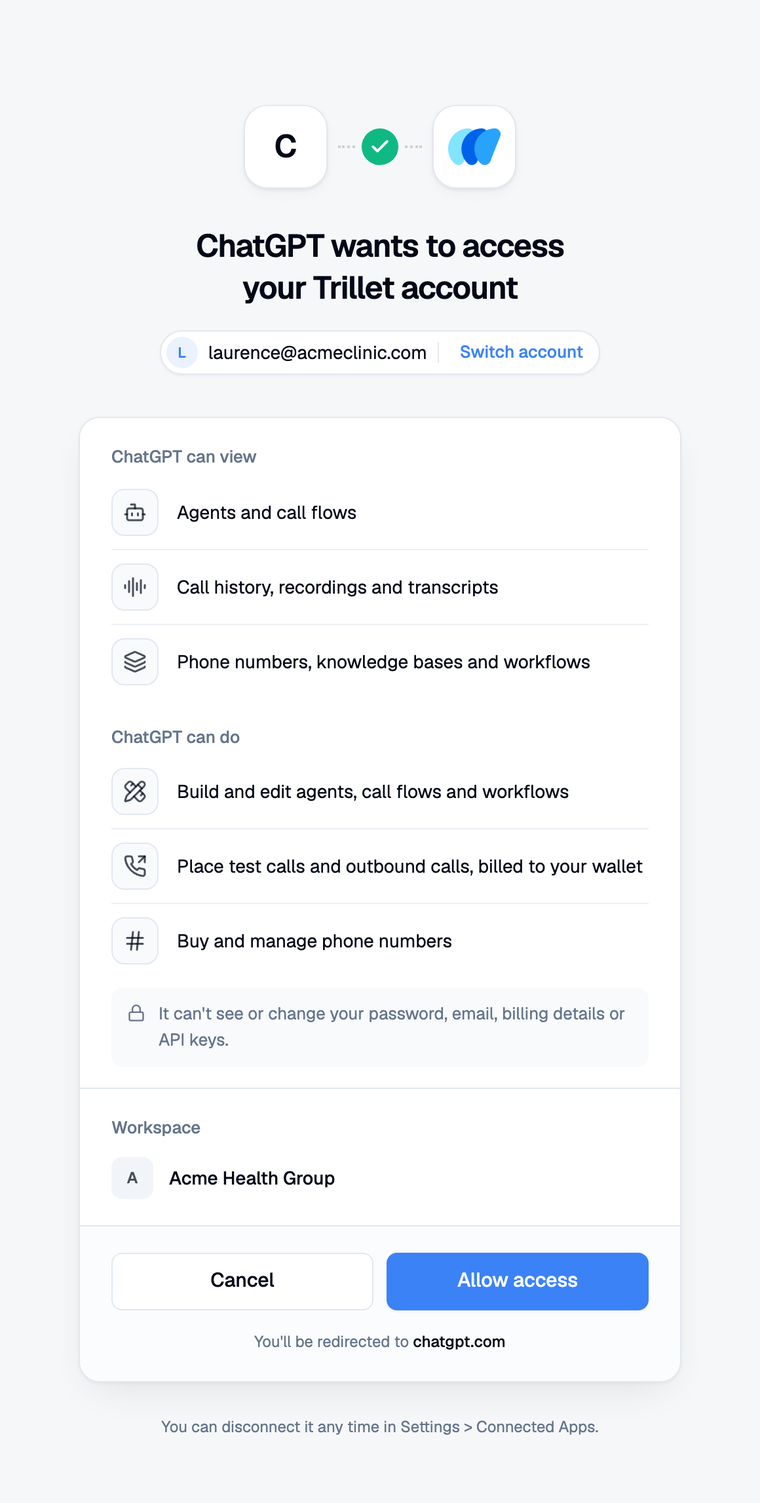
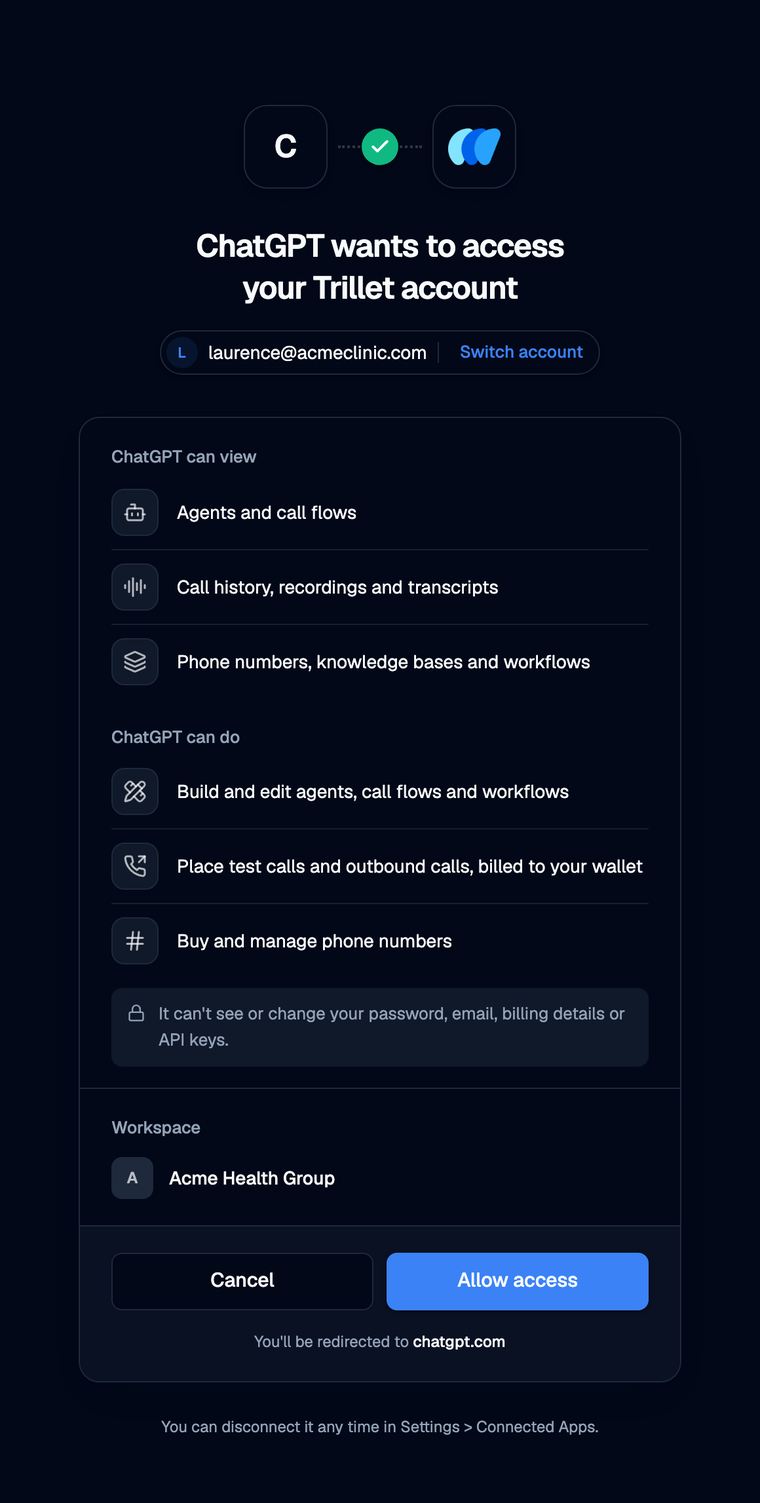
Trillet shows a consent screen titled **ChatGPT wants to access your Trillet account**. It lists what ChatGPT can view and do, and confirms that it can't see or change your password, email, billing details, or API keys.
If you belong to more than one workspace, choose the workspace ChatGPT starts in. ChatGPT can reach all of your workspaces and switches when you ask.
Select **Allow access**. Trillet returns you to ChatGPT.
 ## Use Trillet in a chat
1. Start a new conversation.
2. Type `@` in the message box and select **Trillet**. Depending on your ChatGPT version, you can also select Trillet from the **+** menu in the message box.
3. Ask for what you want. For example:
```
List my Trillet agents and tell me which phone number each one answers.
```
ChatGPT works best when you name Trillet and say what you want done. For more ideas, see [What you can ask](https://docs.trillet.ai/mcp/example-prompts).
### Confirming actions
ChatGPT asks you to approve any tool that changes something, such as updating a prompt or buying a number. Check the details before you approve. You can choose to remember your decision for a tool for the rest of that conversation. A new conversation asks again.
Trillet adds its own check on top: placing calls, buying numbers, running workflows, and deleting anything only go ahead after you confirm in the chat.
## For ChatGPT workspace admins
On Business, Enterprise, and Edu workspaces, admins control custom MCP connectors in **Workspace settings**:
- **Business:** admins and owners create and publish custom MCP connectors for the workspace. Members connect within the permissions the workspace allows. The relevant permission is **Create plugins with MCPs**.
- **Enterprise and Edu:** admins can use role-based access control to let selected members create custom MCP connectors, and can choose who can use each approved connector. Only admins and owners can publish to the workspace. Admins can also turn individual actions on or off.
When an admin publishes a connector, ChatGPT keeps a snapshot of its tools. When Trillet adds new tools, an admin needs to refresh the connector and publish the update before members see them.
OpenAI documents these controls in [Admin controls, security, and compliance for plugins and apps](https://help.openai.com/en/articles/11509118-admin-controls-security-and-compliance-for-plugins-and-apps).
## Disconnect ChatGPT
You can remove access from either side:
- **In Trillet:** go to **Settings > Account > Connected Apps** and select **Disconnect** next to ChatGPT. Access stops straight away.
- **In ChatGPT:** remove or disconnect the Trillet connector from your plugin or app settings.
See [Security and permissions](https://docs.trillet.ai/mcp/security#disconnect-an-assistant) for details.
## Next steps
Example prompts for building, testing, and reviewing agents.
Fixes for sign-in, workspace, and tool errors.
## Use Trillet in a chat
1. Start a new conversation.
2. Type `@` in the message box and select **Trillet**. Depending on your ChatGPT version, you can also select Trillet from the **+** menu in the message box.
3. Ask for what you want. For example:
```
List my Trillet agents and tell me which phone number each one answers.
```
ChatGPT works best when you name Trillet and say what you want done. For more ideas, see [What you can ask](https://docs.trillet.ai/mcp/example-prompts).
### Confirming actions
ChatGPT asks you to approve any tool that changes something, such as updating a prompt or buying a number. Check the details before you approve. You can choose to remember your decision for a tool for the rest of that conversation. A new conversation asks again.
Trillet adds its own check on top: placing calls, buying numbers, running workflows, and deleting anything only go ahead after you confirm in the chat.
## For ChatGPT workspace admins
On Business, Enterprise, and Edu workspaces, admins control custom MCP connectors in **Workspace settings**:
- **Business:** admins and owners create and publish custom MCP connectors for the workspace. Members connect within the permissions the workspace allows. The relevant permission is **Create plugins with MCPs**.
- **Enterprise and Edu:** admins can use role-based access control to let selected members create custom MCP connectors, and can choose who can use each approved connector. Only admins and owners can publish to the workspace. Admins can also turn individual actions on or off.
When an admin publishes a connector, ChatGPT keeps a snapshot of its tools. When Trillet adds new tools, an admin needs to refresh the connector and publish the update before members see them.
OpenAI documents these controls in [Admin controls, security, and compliance for plugins and apps](https://help.openai.com/en/articles/11509118-admin-controls-security-and-compliance-for-plugins-and-apps).
## Disconnect ChatGPT
You can remove access from either side:
- **In Trillet:** go to **Settings > Account > Connected Apps** and select **Disconnect** next to ChatGPT. Access stops straight away.
- **In ChatGPT:** remove or disconnect the Trillet connector from your plugin or app settings.
See [Security and permissions](https://docs.trillet.ai/mcp/security#disconnect-an-assistant) for details.
## Next steps
Example prompts for building, testing, and reviewing agents.
Fixes for sign-in, workspace, and tool errors.