## Trillet AI Integrations
Trillet AI offers seamless integration with popular automation tools like **Make.com**, **n8n**, and our **Web SDK**, allowing you to automate **outbound AI voice calls** and embed **AI agents directly into your applications**. Use these platforms and tools to trigger TrilletAI's call capabilities directly from your workflows or integrate voice agents into your websites.
---
## Make.com Integration
Integrate Trillet AI with Make.com **custom node** to automate **outbound voice call workflows**. This is ideal for building call-based campaigns, customer notifications, or voice follow-ups powered by Trillet AI.
### Installation
To add TrilletAI's app to your Make.com organization:
You can find TrilletAI directly on Make.com by searching **"TrilletAI"** in the App list under the `us1` or `us2` regions.
If TrilletAI does not appear in your region or account, use the invitation link below to add it manually:
🔗 **[Click here to install](https://www.make.com/en/hq/app-invitation/380f3212527664bd958eb3bf383c97fe)** if it doesn't appear.
## n8n Integration
TrilletAI provides a **custom node** for [n8n](https://n8n.io) to let you trigger **outbound voice calls** directly within your workflows. This allows you to automate call-based sequences based on custom events, user actions, or external system triggers.
### Installation Steps
1. Ensure `n8n` is installed on your machine. If not, follow [n8n installation guide](https://docs.n8n.io/).
2. Open your terminal and install the TrilletAI node package:
```bash
npm install n8n-trillet-nodes
```
---
## SDK Integration
The Trillet AI Web SDK allows you to integrate **AI-powered voice agents** directly into your website or web application. This enables users to interact with your Trillet AI agents via voice or text calls, ideal for embedding real-time AI conversations in client-facing apps, demos, or custom workflows. The SDK uses LiveKit for real-time audio handling and supports features like transcription, audio analysis, and event emitting.
### Installation
You can install the SDK via npm for modern web frameworks (e.g., React, Next.js) or load it directly from a CDN for simple HTML integrations.
#### Via npm
1. Install the package:
```bash
npm install @trillet-ai/web-sdk
```
2. Import and use in your code:
```typescript
import { TrilletAgent } from '@trillet-ai/web-sdk';
```
#### Via CDN (No Build Tools Required)
Include the SDK script in your HTML:
```html
```
**Note:** The SDK requires a browser environment with secure context (HTTPS or localhost). It does not support server-side rendering.
### Configuration
Initialize a `TrilletAgent` instance:
```typescript
const agent = new TrilletAgent({
workspaceId: 'your-workspace-id',
agentId: 'your-agent-id',
variables: { key: 'value' },
mode: 'voice',
});
```
### Usage
1. **Start a Call:**
- Use `startPublicCall()` for public (workspace-based) integrations.
- Use `startCall()` for API key authenticated calls.
```typescript
try {
await agent.startPublicCall();
console.log('Call started');
} catch (error) {
console.error('Failed to start call:', error);
}
```
2. **End a Call:**
```typescript
agent.endCall();
```
3. **Toggle Microphone:**
```typescript
agent.toggleMicrophone(true); // Enable microphone
```
4. **Event Handling:**
The SDK extends `EventEmitter`. Listen for events like `connected`, `disconnected`, `error`, `assistantStartedSpeaking`, etc.
```typescript
agent.on('connected', (details) => {
console.log('Connected:', details.callId, details.agent.name);
});
agent.on('disconnected', () => {
console.log('Call ended');
});
agent.on('error', (error) => {
console.error('Error:', error);
});
```
5. **Transcripts:**
Access real-time and final transcripts:
```typescript
const transcripts = agent.getTranscripts(); // Array of Transcript objects
const current = agent.getCurrentTranscript(); // Partial transcripts
```
### SDK Integration Preview
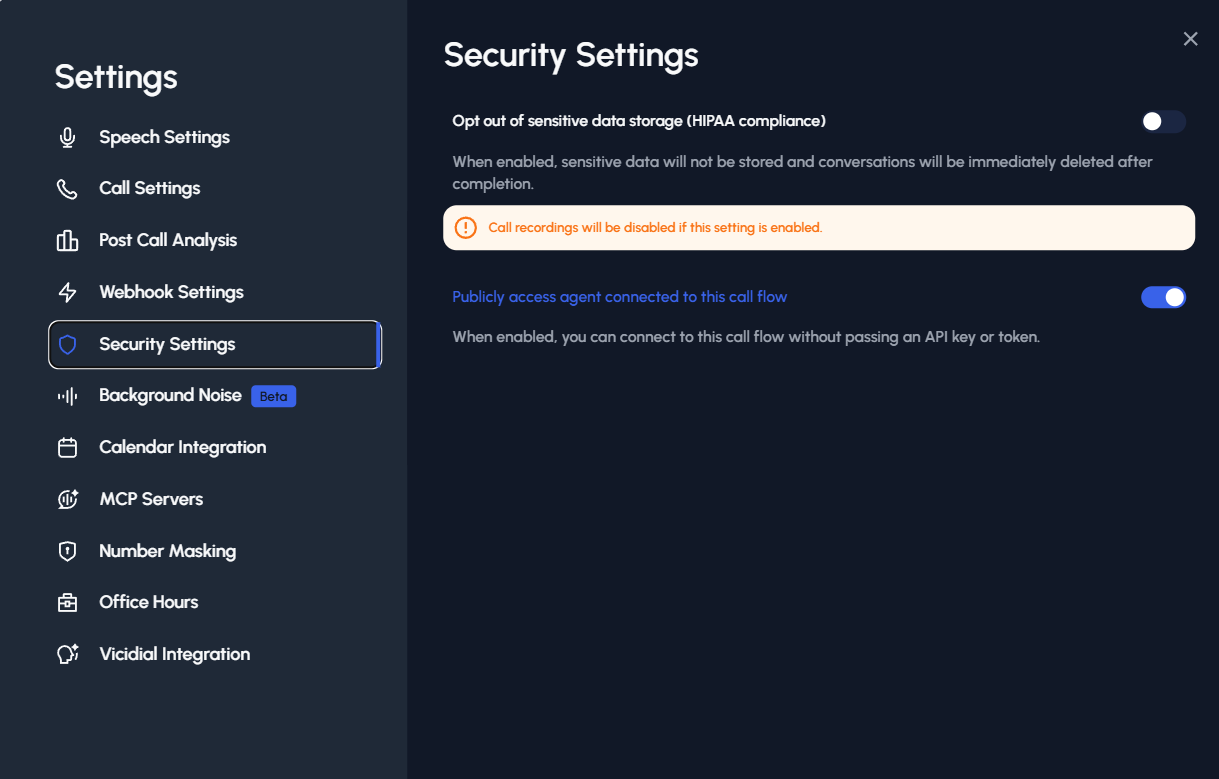
**Important:** Make sure to enable public access in your call flow settings before testing the SDK integration. You can find this option in the call flow settings panel.
### Examples
#### React Component Integration
For React/Next.js apps, create a basic component to handle calls:
```tsx
import { useState, useRef } from 'react';
import { TrilletAgent } from '@trillet-ai/web-sdk';
const VoiceAgent = ({ agentId, workspaceId }) => {
const agentRef = useRef(null);
const [isCallActive, setIsCallActive] = useState(false);
if (!agentRef.current) {
agentRef.current = new TrilletAgent({
workspaceId,
agentId,
});
}
const startCall = async () => {
try {
await agentRef.current.startPublicCall();
setIsCallActive(true);
} catch (error) {
console.error('Failed to start call:', error);
}
};
const endCall = () => {
agentRef.current.endCall();
setIsCallActive(false);
};
return (
);
};
export default VoiceAgent;
```
#### Simple HTML Button Integration
Embed a button that starts/stops a voice call with your agent:
```html
```
**Note:** Replace placeholders like `your-workspace-id` and `your-agent-id` with your actual Trillet AI credentials. For production, secure sensitive data (e.g., avoid exposing API keys client-side). The SDK handles browser compatibility checks internally. If you encounter issues, ensure microphone permissions are granted and test in a secure context.